Vibe Coding: Deploying GAS with Google Canvas
即使完全不會寫程式,也能透過自然語言描述,讓 AI 生成一個前端網頁 + 後端邏輯 + Google 試算表資料庫的完整網頁應用程式,並成功部署上線。
§1 Overview
概覽
Vibe Coding 是一項革命性的技術,讓即便不具備程式設計背景的使用者,也能輕鬆將想法轉化為實際運作的網頁應用程式。本 Playbook 將引導您運用 Google Gemini 的 Canvas 功能,透過自然語言描述,讓 AI 自動生成前端 HTML 介面與後端 Google Apps Script (GAS) 邏輯。更棒的是,您可以將 Google 試算表作為應用的後端資料庫,實現資料的自動儲存與管理。從描述需求、建立資料庫、部署程式碼到最終將應用上線,每個步驟都將詳細呈現。完成本 Playbook 後,您將掌握如何部署一個具備前端互動、後端資料處理及資料庫儲存能力的網頁應用,開啟無程式碼開發的新可能。
整體架構
整體架構採用簡潔的三層式設計:
- 前端 (Frontend): 由 Gemini Canvas 生成的單一
index.html檔案構成,提供使用者互動介面(例如輸入框、按鈕、下拉選單)。 - 後端邏輯 (Backend Logic): 透過 Google Apps Script (GAS) 中的
Code.gs檔案實現。這段程式碼負責處理前端傳來的請求、執行業務邏輯,並與資料庫進行互動。它運行在 Google 的伺服器上,無需額外設定伺服器環境。 - 資料庫 (Database): 使用 Google 試算表作為輕量級的後端資料庫。前端介面透過 GAS 後端,將資料寫入或讀取試算表,實現資料的持久化儲存。
使用者在瀏覽器中訪問部署後的網頁應用,前端
index.html負責收集使用者輸入,然後將請求發送給後端的Code.gs。Code.gs進一步將資料存入 Google 試算表,並可將處理結果返回給前端。整個流程形成一個高效、無伺服器 (Serverless) 且易於部署的網頁應用生態。
---en---
Overview
Vibe Coding is a revolutionary technology that allows users, even without programming background, to easily transform ideas into functional web applications. This Playbook will guide you through using Google Gemini’s Canvas feature to describe your desired web application functionality using natural language, enabling AI to automatically generate both the frontend HTML interface and the backend Google Apps Script (GAS) logic. What’s even better, you can leverage Google Sheets as your application’s backend database for automatic data storage and management. From describing requirements, setting up the database, deploying code, to finally bringing your application online, each step will be detailed. Upon completing this Playbook, you will master how to deploy a web application with frontend interaction, backend data processing, and database storage capabilities, unlocking new possibilities for no-code development.
Overall Architecture
The overall architecture adopts a clean three-tier design:
- Frontend: Consists of a single
index.htmlfile generated by Gemini Canvas, providing the user interaction interface (e.g., input fields, buttons, dropdowns). - Backend Logic: Implemented through the
Code.gsfile within Google Apps Script (GAS). This code handles requests from the frontend, executes business logic, and interacts with the database. It runs on Google’s servers, eliminating the need for additional server environment setup. - Database: Utilizes Google Sheets as a lightweight backend database. The frontend interface, via the GAS backend, writes data to or reads data from the spreadsheet, achieving persistent data storage.
Users access the deployed web application through their browser. The
index.htmlfrontend collects user input and sends requests to theCode.gsbackend.Code.gsthen stores the data in Google Sheets and can return processing results to the frontend. This entire process forms an efficient, serverless, and easily deployable web application ecosystem.
§2 Prerequisites
§3 Step-by-step
用自然語言描述你的應用
Do 在 Google Gemini Canvas 中,用「說故事」的方式,詳細描述你想要的網頁應用功能。
Why Vibe Coding 的核心就是「你負責提需求,AI 負責實現」。你的需求描述得越清晰,AI 做出來的東西就越符合預期。
1. 打開 Google Gemini,點擊「Canvas」功能啟用畫布,並選用「思考型」模型。
2. 在提示詞框中,輸入你的完整需求。**關鍵指令**:必須包含「**生成一個單一 html 的 GAS 程式**」。
3. **範例**:「請幫我寫一個**單一 html 的 GAS 程式**,它是一個班級飲料訂購系統。前端網頁要有:『姓名』輸入框、『品項』下拉選單(紅茶、綠茶、奶茶)、『甜度』單選按鈕(全糖、半糖、無糖)、『送出訂單』按鈕。後端需將每筆訂單(包含時間戳記)存入一個 Google 試算表中。」
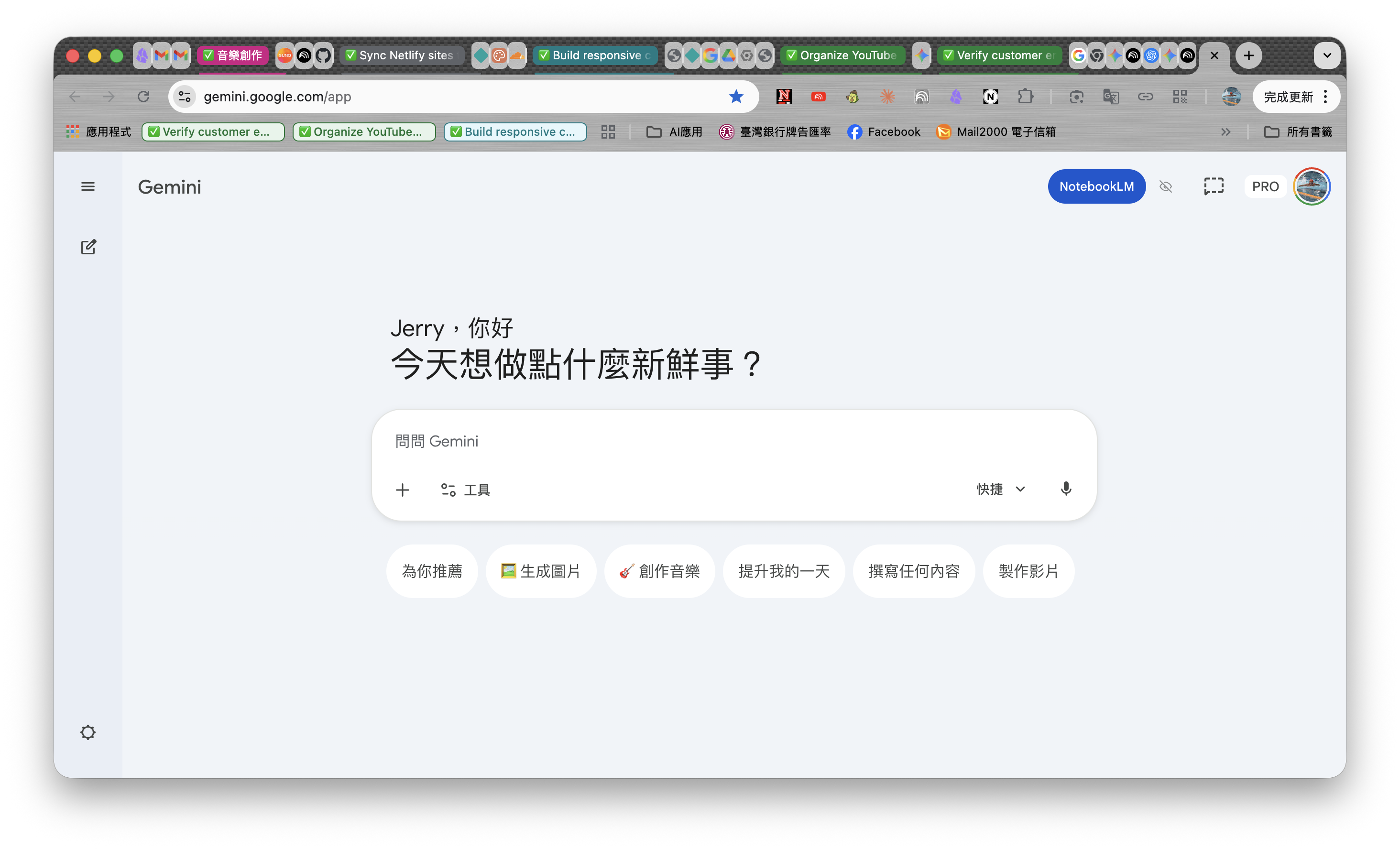
Verify 點擊提交後,AI 開始分析,並在畫布中生成 **兩個** 程式碼區塊:一個是 `index.html` (前端),一個是 `Code.gs` (後端)。
建立後端資料庫 (Google 試算表)
Do 建立一個空白的 Google 試算表,用來存放訂單資料。
Why 為你的應用程式準備一個家,讓所有資料有地方可以儲存。
1. 在 Google Drive 中,建立一個新的 Google 試算表。
2. 將其命名為「飲料訂購系統資料庫」。
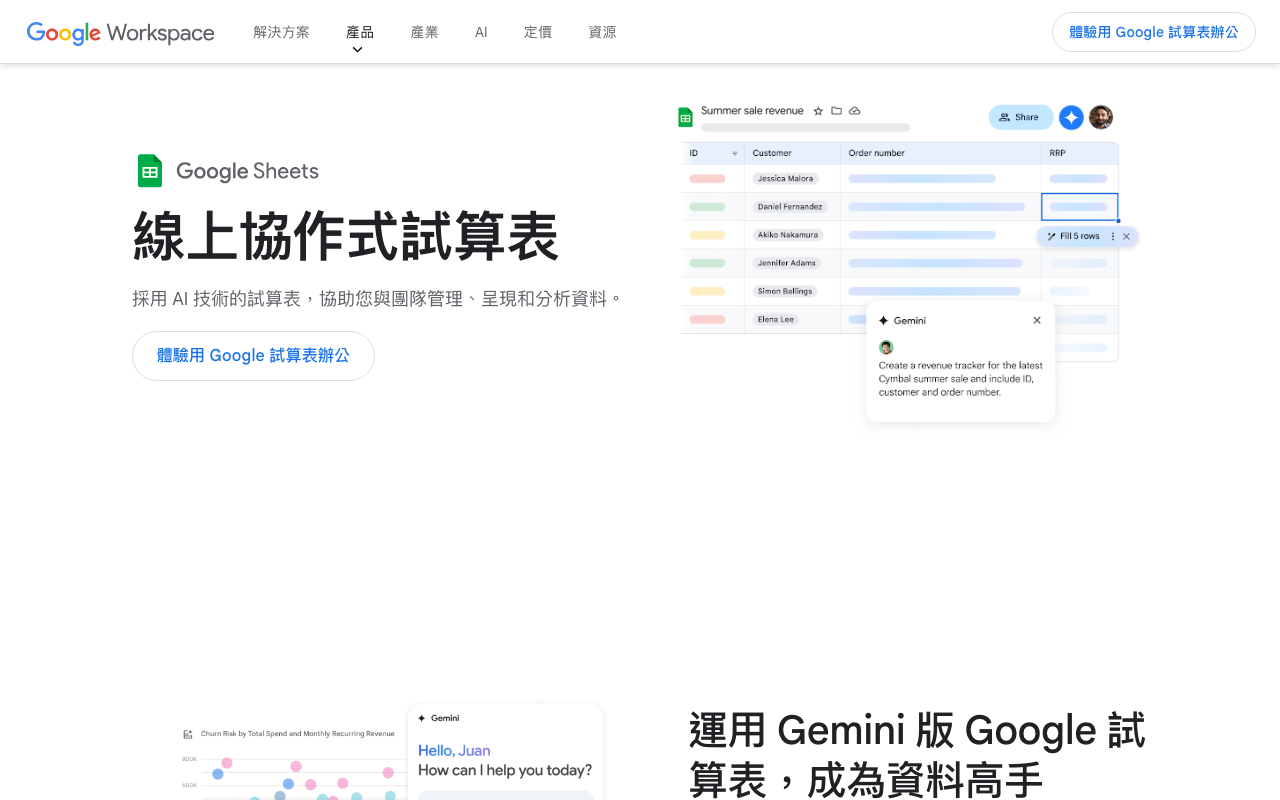
Verify 你擁有一個空白的 Google 試算表。
部署後端程式碼 (Code.gs)
Do 將 AI 生成的後端邏輯,貼到 Google Apps Script (GAS) 編輯器中。
Why 這是應用程式的大腦,負責處理前端傳來的資料,並將其寫入試算表。
1. 在你剛建立的 Google 試算表中,點擊頂部選單「擴充功能」->「Apps Script」。
2. 這會開啟 GAS 編輯器,裡面有一個預設的 `Code.gs` 檔案。
3. 回到 Gemini Canvas,複製 `Code.gs` 區塊中的所有程式碼。
4. 將程式碼**完全覆蓋**貼到 GAS 編輯器的 `Code.gs` 中,並點擊「儲存專案」圖示。
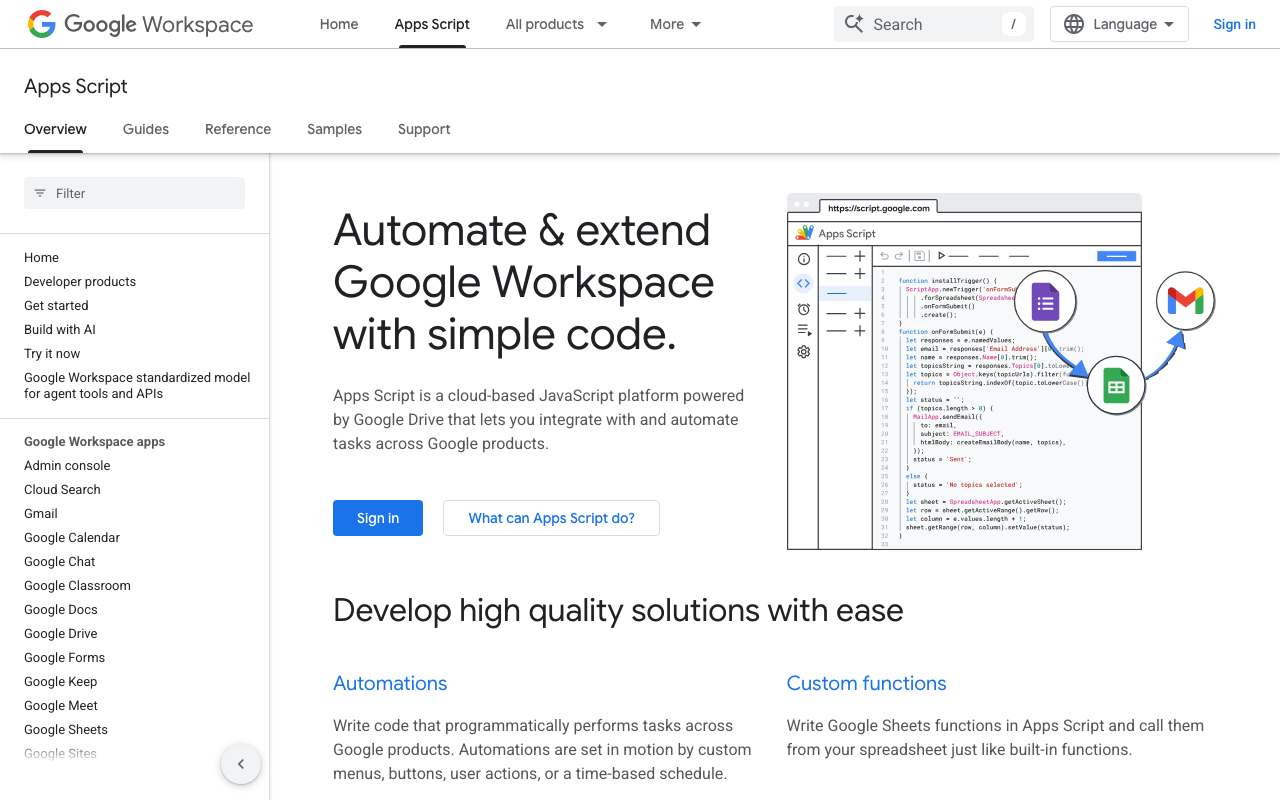
Verify GAS 編輯器中的 `Code.gs` 內容已更新為 AI 生成的程式碼,且儲存成功。
部署前端程式碼 (index.html)
Do 將 AI 生成的前端介面,同樣貼到 GAS 編輯器中。
Why 這是應用程式的臉,使用者將透過這個介面與你的程式互動。
1. 在 GAS 編輯器左側,點擊「檔案」旁邊的「+」號,選擇「HTML」。
2. 將檔案命名為 `index`(**必須是這個名字**),按 Enter。
3. 回到 Gemini Canvas,複製 `index.html` 區塊中的所有程式碼。
4. 將程式碼**完全覆蓋**貼到 GAS 編輯器中新建的 `index.html` 檔案裡,並儲存專案。
Verify 你的 GAS 專案中現在有 `Code.gs` 和 `index.html` 兩個檔案。
上線部署與授權
Do 將你的應用程式發佈到網路上,讓任何人都能透過連結使用。
Why 這是讓你的工具從程式碼變成真實可用網站的最後一步。
1. 在 GAS 編輯器中,點擊右上角的「部署」按鈕,選擇「新增部署作業」。
2. 在「選取類型」中,點擊齒輪圖示,選擇「網頁應用程式」。
3. 在「誰可以存取」的下拉選單中,選擇「**所有人**」。
4. 點擊「部署」。
5. GAS 會要求授權,點擊「授權存取」,選擇你的 Google 帳號,在「不安全」的警告頁面點擊「進階」,然後選擇「前往『(專案名稱)』(不安全)」,最後點擊「允許」。
6. 完成後,GAS 會給你一個「網頁應用程式」的網址。**複製這個網址**。
Verify 你獲得了一個 `.google.com` 結尾的網址,在瀏覽器中打開它,能看到你設計的飲料訂購系統介面。
§4 Exercises
Exercises
§5 Mastery
§6 FAQ
部署後打開網頁一片空白。
最常見的原因是 Step 4 中,HTML 檔案沒有被正確命名為 `index`。另一個可能是 `Code.gs` 中缺少了 `doGet()` 函數,可以請 AI 檢查並補上。
點擊「送出訂單」按鈕沒反應,資料庫也沒收到資料。
檢查 Step 3 和 Step 4 的程式碼是否複製完整,是否有遺漏。同時,檢查 Google 試算表是否開啟了共享權限(雖然通常不需要)。最簡單的方法是,回到 Canvas 重新生成一次程式碼再部署。
每次修改程式碼都要重新部署,好麻煩。
是的,這是 GAS 的標準流程。你需要點擊「部署」->「管理部署作業」,編輯現有部署並「建立新版本」。這確保了每次的更新都是穩定版本。
§7 Related Resources
§8 Badge unlock
🚀 Vibe Coder
完成所有步驟後解鎖。
恭喜您!您已掌握 Vibe Coding,成功部署第一個 AI 生成的網頁應用程式!