AI 簡報全流程實戰
使用者跟著做完,能從一個模糊的主題想法開始,在 30 分鐘內產出一份結構完整、視覺精美且觀點獨到的專業簡報。
§1 概覽
概覽
本 Playbook 旨在引導使用者掌握一套高效的 AI 簡報製作全流程,從模糊的點子到精緻的演示稿。在 AI 時代,簡報製作不再是耗時耗力的苦差事,透過 Google Gemini 和 NotebookLM 的強大協作,您將學會如何在短短 30-45 分鐘內,產出一份不僅結構完整、視覺精美,更蘊含個人獨到觀點的專業簡報。我們將透過 RED (Research, Extract, Design) 三大核心步驟,結合 AI 深度研究功能搜集最新資訊,利用 NotebookLM 精準萃取報告精髓,再透過 Gemini Canvas 快速生成簡報初稿。隨後,您將學習如何注入個人洞察與創意,利用 Nano Banana Pro 進行視覺優化,並在 Canva 中加入流暢的動畫效果,將簡報從 AI 的「制式化」提升至個人化的「傑作」。這不僅是工具教學,更是一種人機協作的思維轉變,讓 AI 成為您簡報創意的加速器,而非取代者,確保您的每次簡報都能產生強大的影響力。
整體架構
本流程遵循「RED」三階段架構:首先是「Research (研究)」,透過 Gemini 的 Deep Research 功能進行全面性的資料搜集,確保簡報內容的時效性與權威性。接著進入「Extract (萃取)」,利用 NotebookLM 針對研究報告進行精華提煉,將龐雜資訊轉化為簡報所需的精煉大綱與核心觀點。最後是「Design (設計)」,此階段分為 AI 初稿生成、個人化優化與視覺美化。AI 負責快速產出簡報骨架,而使用者則在此基礎上注入個人洞察、故事與特色,並透過 Canva 等工具添加動畫,完成一份兼具內容深度與視覺吸引力的簡報。此架構強調人機協作,讓 AI 處理重複性工作,人類專注於創造不可取代的價值。
---en---
Overview
This playbook guides users through a highly efficient AI-powered presentation creation workflow, transforming vague ideas into polished, impactful presentations. Leveraging the powerful synergy between Google Gemini and NotebookLM, you will learn how to produce a presentation that is not only well-structured and visually appealing but also imbued with your unique insights, all within 30-45 minutes. We will navigate through three core phases: RED (Research, Extract, Design). This involves utilizing AI Deep Research for gathering the latest information, employing NotebookLM to precisely distill the essence from research reports, and then rapidly generating a presentation draft using Gemini Canvas. Following this, you will discover how to infuse personal insights and creativity, visually refine slides with tools like Nano Banana Pro, and integrate smooth animations in Canva. This process elevates your presentation from a generic AI output to a personalized masterpiece. This playbook emphasizes a human-AI collaborative mindset, positioning AI as an accelerator for your presentation creativity rather than a replacement, ensuring every presentation you deliver leaves a lasting impression.
Overall Architecture
This workflow adheres to the “RED” three-phase architecture: It begins with “Research,” leveraging Gemini’s Deep Research feature for comprehensive data collection, ensuring the timeliness and authority of presentation content. Next is “Extract,” where NotebookLM is used to distill key insights from research reports, transforming vast information into a concise outline and core arguments for the presentation. The final stage is “Design,” which includes AI-generated drafts, personalized optimization, and visual enhancement. AI handles the rapid creation of the presentation’s skeleton, while the user infuses personal insights, stories, and unique elements. Tools like Canva are then used to add animations, culminating in a presentation that boasts both profound content and visual appeal. This architecture emphasizes human-AI collaboration, allowing AI to manage repetitive tasks while humans focus on creating irreplaceable value.
§2 前置準備
§3 Step-by-step
R (Research) - AI 深度研究
Do 使用 Google Gemini 的 Deep Research 功能,為你的簡報主題搜集最新、最權威的資料。
Why 避免簡報內容只基於你腦中過時的資訊或 AI 的通用知識,確保內容的時效性與可信度。
開啟 Google Gemini,點選「工具」選單中的「Deep Research」。
輸入你的簡報主題,例如「2026年教育AI代理人的發展趨勢」。
模型選擇「深度型」,點擊「開始研究」。
等待研究完成後,點擊「匯出至 Google 文件」。
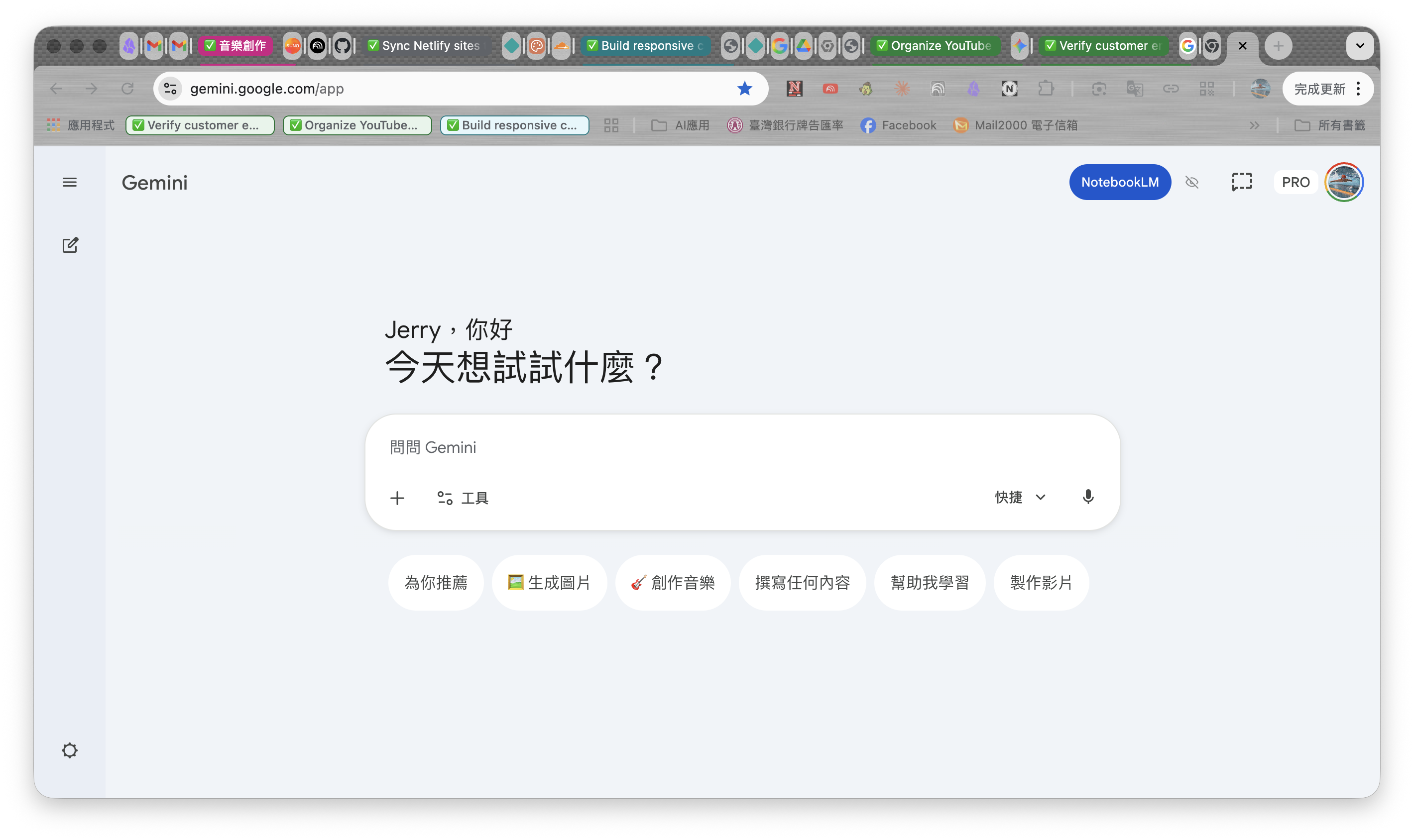
Verify 你的 Google Drive 中會出現一份完整的 Google 文件報告,包含目錄與引用來源。
E (Extract) - 萃取黃金筆記
Do 利用 NotebookLM,從 AI 生成的數千字報告中,提煉出簡報所需的核心觀點與架構。
Why 將龐雜的資料轉化為清晰、有邏輯的簡報大綱,這是簡報成功的骨幹。
開啟 NotebookLM,建立一個新筆記本。
點擊「新增來源」,從 Google Drive 選擇剛才 Deep Research 生成的報告文件。
向 NotebookLM 提問:「根據來源資料,為一場20分鐘的演講,擬定一份包含開頭、三個主要論點、以及結論的簡報大綱。」
將 AI 回覆的大綱儲存為記事,這就是你的「黃金筆記」。
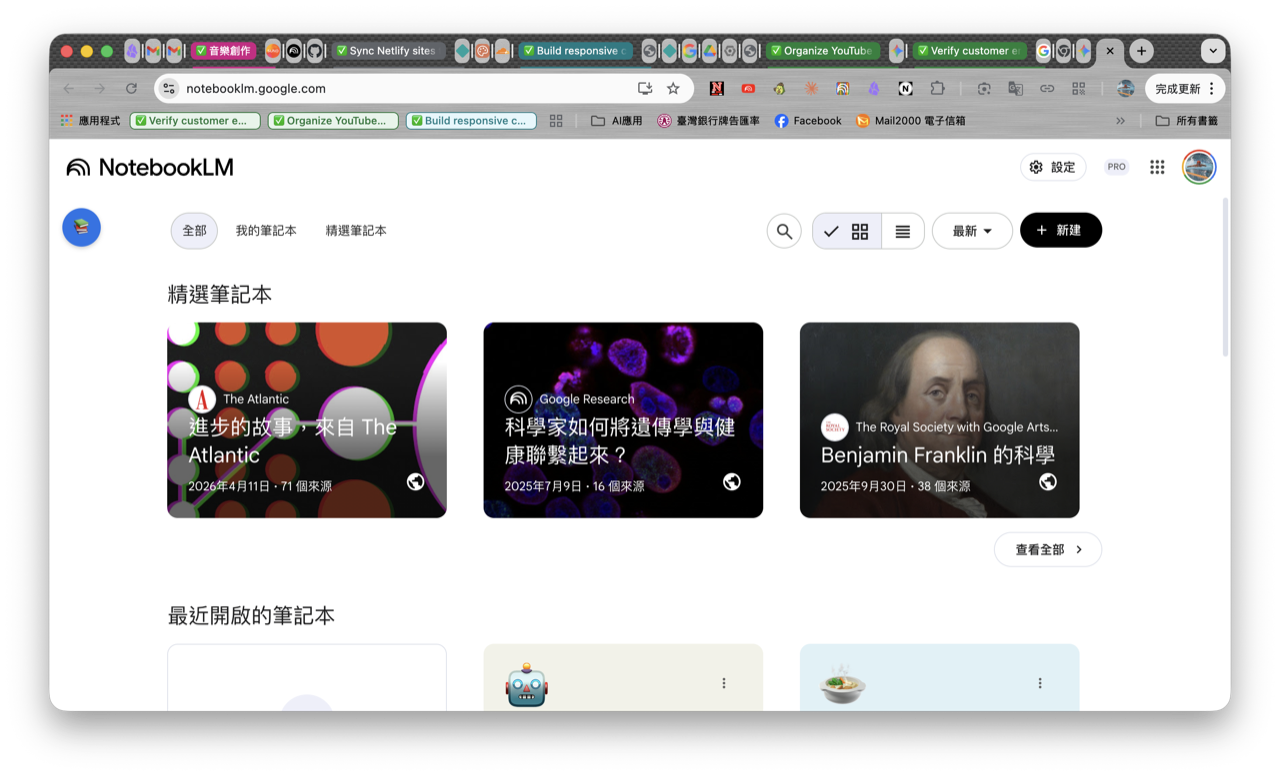
Verify 你得到一份結構清晰、層次分明的簡報大綱文字。
D (Design) - AI 初稿生成
Do 將文字大綱交給 AI,自動生成一份可編輯的簡報初稿。
Why 將繁瑣的排版、找圖工作交給 AI,讓你專注於內容的打磨。
回到 Google Gemini,選擇「Canvas」功能。
將 NotebookLM 生成的簡報大綱貼入提示詞框。
在最前面加上指令:「請根據以下大綱,為我生成一份 Google Slides 簡報,風格要求專業、簡潔,使用藍色與灰色作為主色系。」
AI 完成後,點選「匯出成簡報」,並在 Google Slides 中開啟。
Verify 你在 Google Slides 中得到了一份包含封面、目錄、內容頁與結尾,且文字可編輯的簡報。
優化:注入靈魂與視覺美化
Do 校對文字、加入個人觀點,並使用 AI 工具美化視覺。
Why 這是將 60 分的 AI 簡報提升到 90 分以上的關鍵,展現你的不可取代性。
**文字校對**:在 Google Slides 中,**逐頁檢查**所有文字是否正確,並加入你自己的「特殊洞察」或案例。
**視覺美化**:安裝 Google Slide 的 Nano Banana Pro 外掛。選取一張你想優化的投影片,點擊「Beautify this slide」。AI 會生成數個美化版本供你選擇,直接替換原頁面。
Verify 簡報的視覺風格煥然一新,且內容包含你獨特的觀點。
動畫與收尾
Do 將簡報匯入 Canva,添加轉場動畫。
Why 流暢的動畫能引導觀眾視線,提升簡報的專業感與觀看體驗。
在 Google Slides 中,將簡報「下載」為 PPTX 格式。
打開 Canva,將 PPTX 檔案拖曳上傳。
在頁面之間,點選「新增轉場效果」,選擇「比對並移動」。
將此轉場效果「全部套用」。
Verify 播放簡報時,頁面之間有平滑流暢的物件移動動畫效果。
§4 動手練習
動手練習
§5 自我檢核
§6 常見卡關
AI 生成的簡報內容有誤或品質不佳。
問題出在 Step 2 的「黃金筆記」不夠好。回到 NotebookLM,用更精準的提問來萃取大綱,或手動修改大綱,再重新執行 Step 3。
Nano Banana Pro 美化後的圖片文字無法編輯。
這是正常的,因為美化後已變成圖片。正確流程是「先確認文字內容完全正確,再進行美化」。若需修改,需用 Nano Banana Pro 的「去除文字」功能,再手動疊加文字方塊。
§7 延伸資源
§8 Badge unlock
📈 AI簡報大師
完成所有步驟後解鎖。
恭喜解鎖!您已掌握 AI 時代的簡報製作精髓,讓您的每一次演示都充滿說服力與個人魅力!